
As an Amazon Associate, deeperthing.com earns from qualifying purchases.
By Aiden Tsang, Updated August 2026
Smart home technology is not just for tech enthusiasts. For older adults, the right devices can mean the difference between struggling with daily tasks and living independently with confidence. Whether you are setting up a system for yourself or helping an aging parent, this guide walks through every category of smart home device that matters for seniors, with practical setup advice, product recommendations, and tips for making technology approachable.
According to the AARP, nearly 90% of adults over 65 want to stay in their own homes as they age. Smart home devices make that goal more achievable than ever. From voice-controlled lights that prevent nighttime falls to video doorbells that let you see who is at the door without rushing to answer, each device solves a real problem that seniors face every day.
If you are new to smart home technology, our beginner setup guide covers the fundamentals. This article focuses specifically on what works best for elderly users.
Why Smart Home Devices Matter for Seniors
The challenges of aging are well documented. Arthritis makes turning small keys difficult. Mobility issues make trips to the front door exhausting. Memory changes mean medications get missed. Vision problems make reading thermostats hard. Smart home devices address each of these issues directly.
Consider these common scenarios:
- A senior with arthritis struggles to turn a deadbolt. A smart lock lets them unlock the door with a fingerprint or a simple voice command.
- An elderly woman living alone cannot get to the door quickly when someone rings the bell. A video doorbell lets her see and speak to visitors from her phone or a smart display.
- A man with early-stage dementia forgets whether he took his evening pills. A smart medication reminder tracks doses and alerts family members if a dose is missed.
- A family living three states away worries about their mother falling at night. Security cameras and motion sensors provide real-time alerts.
The key insight is that smart home devices do not replace human care. They supplement it. They fill gaps between caregiver visits, provide backup when something goes wrong, and give family members peace of mind between phone calls.
1. Smart Locks for Seniors: Keyless Entry Without the Fumble
Fumbling with keys is one of the most common frustrations for older adults. Stiff fingers from arthritis, poor lighting at the front door, and the cognitive load of finding the right key all contribute to a daily annoyance that can become a real safety issue. If someone is being followed or feels unsafe, standing at the door searching for keys is the worst possible scenario.
Smart locks solve this problem by offering multiple ways to unlock the door. The August Wi-Fi Smart Lock (4th Generation) is our top pick for seniors because it installs over your existing deadbolt in about 10 minutes. There is no need to replace the lock cylinder, and physical keys still work as a backup. The lock connects directly to Wi-Fi, so family members can lock or unlock the door remotely through the August app.
For seniors who prefer a fingerprint reader, the eufy Security Smart Lock S230 recognizes fingerprints in under one second. It also has a touchscreen keypad for PIN codes, which is helpful for caregivers or home health aides who need temporary access. The S230 is BHMA certified, meaning it meets industry standards for durability and security.
Key features to look for in a senior-friendly smart lock:
- Multiple entry methods: Fingerprint, keypad, app, and physical key backup. The more options, the better, because seniors have different good days and bad days.
- Auto-lock: The door locks automatically after a set period. This is essential for seniors who may forget to lock up.
- Remote access for family: Caregivers can check if the door is locked and lock it remotely if needed.
- Low battery alerts: The app should send notifications before batteries die, with enough warning to replace them.
- Voice control: “Alexa, lock the front door” is much easier than walking to the door and turning a deadbolt.
For more detailed comparisons, see our complete guide to the best smart locks for 2026.
2. Video Doorbells: See Who Is There Without Getting Up
For seniors with mobility issues, answering the door can be a genuine physical challenge. Getting up from a chair, walking to the front door, and opening it takes time and energy. A video doorbell lets you see who is at the door and talk to them through your phone or a smart display, all without leaving your seat.
The Ring Video Doorbell 4 is the most popular option, and for good reason. It works with or without existing doorbell wiring, offers color video day and night, and includes two-way audio so you can have a conversation with whoever is at the door. The Pre-Roll feature captures several seconds of video before a motion event, giving you more context about what triggered the alert.
If you want a more affordable option, the Blink Video Doorbell offers similar core functionality at a lower price. It runs on batteries that last up to two years, which means no wiring is needed. It works with Alexa, so an Echo Show device can display the video feed automatically when someone rings the bell.
For seniors specifically, consider these video doorbell features:
- Two-way audio: Speak to visitors without opening the door. This is especially important for seniors who may be vulnerable to door-to-door scams.
- Motion alerts: Get notified when someone approaches the door, even if they do not ring the bell. Family members can receive these alerts too.
- Smart display integration: When connected to an Echo Show or Google Nest Hub, the video feed appears on screen automatically when someone rings the bell. No phone needed.
- Quick Replies: Pre-recorded messages like “Please leave the package at the door” can be played automatically when you cannot answer.
Our detailed comparison of video doorbells for 2026 covers additional models and features.
3. Smart Lights: Fall Prevention and Automatic Lighting
Falls are the leading cause of injury among older adults. The CDC reports that one in four Americans aged 65 and older falls each year, and many of these falls happen at night when seniors get up to use the bathroom. Poor lighting is a major contributing factor.
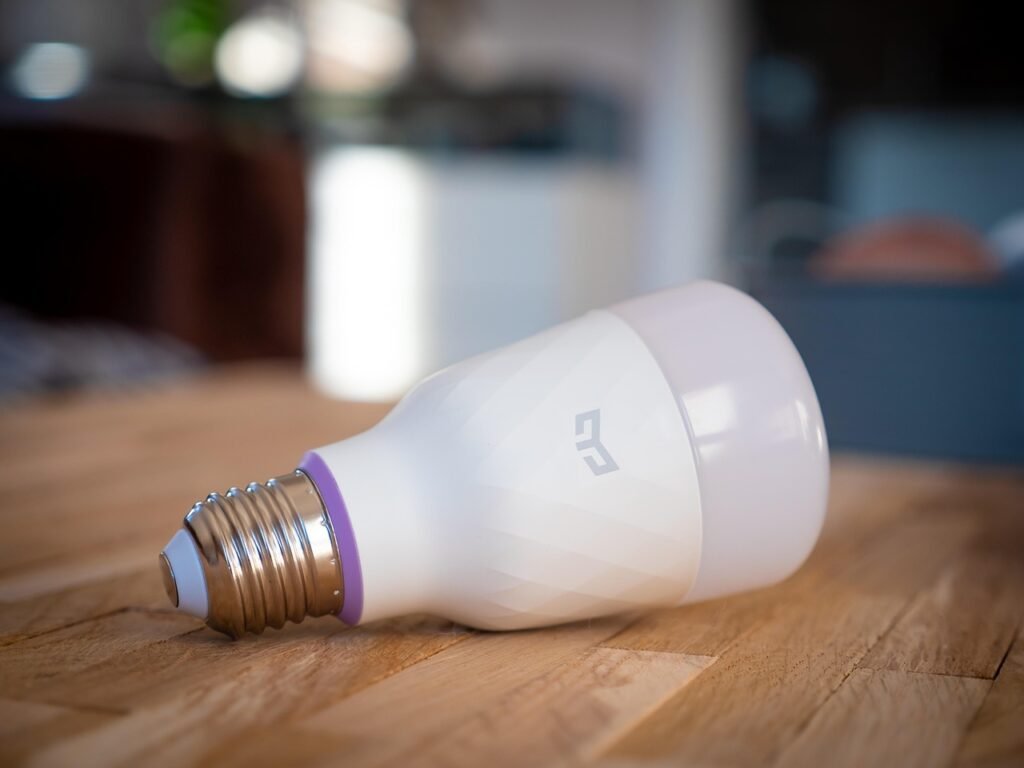
Smart lights address this problem directly. You can set lights to turn on automatically when motion is detected, schedule them to dim gradually at bedtime, and control them with voice commands. No more reaching for a lamp switch in the dark.
The Philips Hue White A19 Smart Bulb Starter Kit is the gold standard for smart lighting. The included Hue Bridge connects up to 50 bulbs and enables full automation. You can set a routine that turns on hallway lights at 30% brightness from 9 PM to 6 AM, just enough light to see the path to the bathroom without being fully blinded.
For a more budget-friendly option, the Sengled Smart LED A19 WiFi Bulbs connect directly to your Wi-Fi network without needing a separate hub. They work with Alexa and Google Assistant for voice control. At roughly half the price of Philips Hue, they are an excellent starting point for seniors who want to try smart lighting without a big investment.
The Wyze Bulb Color is another affordable option that offers color-changing capabilities. While color may seem unnecessary for seniors, it can be useful for visual alerts. For example, you could set the bulb to flash red if a security camera detects motion outside, or turn blue when it is time to take medication.
Practical lighting setups for seniors:
- Path lighting: Motion-activated lights in hallways and along the path from bedroom to bathroom. Set them to 20-30% brightness to avoid sudden full brightness that can cause disorientation.
- Sunset routine: Lights gradually dim over 30 minutes before bedtime to help with sleep cycles.
- Sunrise simulation: Lights gradually brighten in the morning to help establish a healthy wake routine.
- Vacation mode: Lights turn on and off at random intervals to make the house look occupied.
For more smart lighting recommendations, check our guide to the best smart light bulbs for 2026. You can also explore automation ideas for more creative ways to use smart lights.
4. Smart Speakers and Voice Assistants: Hands-Free Control
A smart speaker is the cornerstone of any senior-friendly smart home. It serves as the central command point, letting you control lights, locks, thermostats, and more using nothing but your voice. For seniors with limited mobility, arthritis, or vision problems, voice control is not a convenience. It is a necessity.
The Amazon Echo Dot (5th Generation) is our top recommendation for seniors. At under $50, it provides access to Alexa, who can set medication reminders, make phone calls, answer questions, and control smart home devices. The 5th generation model has improved sound quality over previous versions, making it easier for seniors with hearing loss to understand responses.
For seniors who would benefit from a screen, the Echo Show 8 (3rd Generation) adds an 8-inch display. This is particularly useful for video calls with family members, viewing the video doorbell feed, and seeing visual confirmations when controlling devices. The screen also displays photos, weather forecasts, and news headlines, making it a useful daily companion.
If your senior prefers Google Assistant, the Google Nest Hub (2nd Generation) offers similar functionality with a 7-inch screen. It includes sleep sensing technology that can track sleep patterns, which is valuable for monitoring overall health. Google Assistant also integrates well with Google services, which may be familiar to seniors who already use Gmail or Google Calendar.
Practical ways seniors can use a smart speaker:
- Medication reminders: “Alexa, remind me to take my blood pressure medication at 8 AM and 8 PM.”
- Emergency calls: “Alexa, call my daughter.” Set up emergency contacts so the speaker can make calls without needing a phone.
- Daily routines: “Alexa, good morning” can trigger lights to turn on, the thermostat to adjust, and the news to play.
- Entertainment: Play music, audiobooks, podcasts, or radio stations. Many seniors enjoy listening to oldies or talk radio.
- Questions: “Alexa, what day is it?” or “Alexa, what is the weather today?” help with orientation.
- Drop In: Family members can instantly connect to the Echo device for a check-in, without the senior needing to answer a phone.
For choosing between Alexa and Google Assistant, our smart home ecosystem comparison breaks down the differences in detail.
5. Smart Thermostats: Simple Temperature Management
For many seniors, getting up to adjust the thermostat is a physical challenge. Small buttons, low-contrast displays, and complex menus make traditional thermostats frustrating to use. Smart thermostats solve these problems with voice control, large touchscreen displays, and automatic scheduling.
The Google Nest Thermostat is designed with simplicity in mind. The app guides you through setup, and once configured, the thermostat learns your temperature preferences over time. You can say “Hey Google, set the temperature to 72 degrees” or adjust it from the app. The Nest Thermostat also sends alerts if the temperature drops dangerously low, which is critical for preventing frozen pipes in winter.
The ecobee Smart Thermostat Enhanced is another excellent option. It works with Alexa, so you can control it using an Echo device. The ecobee app is straightforward, and the thermostat supports remote sensors that can be placed in different rooms. This means the thermostat can prioritize the temperature in the room where the senior spends most of their time, rather than the hallway where the thermostat is mounted.
Why smart thermostats help seniors:
- Voice control: No need to walk to the thermostat or read small numbers.
- Remote temperature alerts: Family members can monitor the home temperature remotely and receive alerts if it drops below a safe threshold.
- Energy savings: Automatic scheduling reduces energy waste, which is important for seniors on fixed incomes.
- Simple interface: Large touchscreens with clear numbers are easier to read than traditional thermostats.
See our full guide to the best smart thermostats for 2026 for more options. You can also learn about energy savings in our energy saving guide.
6. Security Cameras: Peace of Mind for the Whole Family
Security cameras serve two purposes for seniors. First, they deter break-ins and package theft. Second, and arguably more importantly, they let family members check in visually. An adult child who lives far away can glance at a camera feed to confirm that Mom is up and moving around, that Dad made it to the kitchen for breakfast, or that the caregiver arrived on time.
The Wyze Cam v4 is our top pick for affordability. At under $45, it offers 2.5K QHD video, color night vision, and an integrated spotlight. It works indoors and outdoors, and the Wyze app provides free 12-second event recordings stored in the cloud. For continuous recording, you can insert a microSD card.
For a simple indoor camera, the Blink Mini is a compact and affordable option. It plugs into a standard outlet and connects to Wi-Fi. The Blink app lets you view live video, and it works with Alexa so you can view the feed on an Echo Show. The small size makes it easy to place on a shelf or table without it being obtrusive.
The Ring Indoor Cam (2nd Generation) is another solid choice, especially if you are already in the Ring ecosystem. It offers 1080p HD video, color night vision, and two-way audio. The Ring app provides motion alerts, and with a Ring Protect subscription, you get 24/7 recording.
Important considerations for senior-focused camera placement:
- Privacy: Discuss camera placement with the senior. They should feel comfortable with where cameras are placed. Avoid bedrooms and bathrooms.
- Common areas: Place cameras in the living room, kitchen, and main entry points. These are the areas where daily activity is most visible.
- Two-way audio: Cameras with two-way audio let family members talk to the senior through the camera, which can be more reliable than a phone call if the senior has trouble hearing the phone ring.
- No subscription required: Many cameras work without a monthly subscription if you use local storage (microSD card). This is important for seniors on fixed incomes.
For comprehensive recommendations, see our guide to security cameras that do not require a monthly subscription. For broader security strategies, read our complete home security guide.
7. Smart Plugs: Easy Automation for Existing Devices
Not every device in a senior’s home needs to be smart. Smart plugs are simple adapters that plug into existing outlets and make any device plugged into them controllable from an app or by voice. This is one of the easiest and most affordable ways to add smart functionality to a home.
The Amazon Smart Plug is the simplest option for Alexa users. It works with the Alexa app, requires no separate hub, and can be set up by saying “Alexa, set up my smart plug.” It supports schedules, so you can set a lamp to turn on at sunset or a coffee maker to start at 6 AM.
For Google Home users or those who want Matter compatibility, the TP-Link Kasa Smart Plug Mini (HS103) is an excellent alternative. The Kasa app is well-designed and easy to use, and the plugs work with both Alexa and Google Assistant. The compact design means it will not block adjacent outlets.
Practical smart plug uses for seniors:
- Automatic lights: Plug a lamp into a smart plug and schedule it to turn on at dusk. No need to walk to the lamp in a dark room.
- Coffee maker: Schedule the coffee maker to start brewing before the senior wakes up. The smell of coffee can help establish a morning routine.
- Space heater safety: Set a smart plug to automatically turn off a space heater after 30 minutes, preventing fire hazards from a forgotten heater.
- TV timer: Schedule the TV to turn off at a set time to encourage healthy sleep habits.
Read our full review of the best smart plugs for 2026 for more recommendations.
8. Medical Alert and Emergency Devices
Traditional medical alert systems have been around for decades, but modern versions are smaller, smarter, and more capable. The Lively Mobile2 is an all-in-one medical alert device that works both at home and on the go. It connects to a cellular network, so no phone line is needed. The device has a large button that connects to a 24/7 emergency response center, and it includes GPS so responders can locate the user even if they cannot speak.
One of the most valuable features of the Lively Mobile2 is optional fall detection. When enabled, the device automatically calls for help if it detects a fall, even if the user is unconscious or unable to press the button. This is a critical feature because many falls happen when the senior is alone and cannot reach a phone.
Amazon also offers Alexa Emergency Assist, which replaced the discontinued Alexa Together service. With an Echo device and an Emergency Assist subscription, seniors can say “Alexa, call for help” to connect with a trained emergency dispatcher. This is a hands-free option that does not require wearing a device, which some seniors prefer.
Comparing medical alert options:
- Wearable devices (Lively Mobile2): Work everywhere, include GPS, and offer fall detection. Require charging and wearing.
- Voice-based (Alexa Emergency Assist): No device to wear, but only works within earshot of an Echo device. Best as a supplement, not a replacement.
- Smartwatch-based: Some smartwatches offer fall detection and emergency calling, but they can be complex for non-tech-savvy seniors.
For health monitoring beyond emergency alerts, consider a smart scale that can track weight trends over time, which is important for managing conditions like heart failure.
9. Smart Medication Reminders
Medication management is a serious concern for seniors. The American Journal of Geriatric Pharmacotherapy reports that up to 55% of elderly patients do not take their medications as prescribed. Missed doses, doubled doses, and confusion about which pills to take when can lead to serious health consequences.
While there is no single perfect smart medication reminder device, there are several approaches that work well:
Alexa medication reminders are the simplest solution. You can set up recurring reminders by saying “Alexa, remind Mom to take her morning pills at 8 AM every day.” The reminder plays through the Echo speaker, and if multiple Echo devices are in the home, the reminder can play on all of them simultaneously. You can also set up the Alexa app to send a notification to a family member’s phone if the reminder is not dismissed within a certain time.
Smart pill dispensers take medication management a step further. These devices pre-sort medications into individual dose cups and dispense them at scheduled times. When it is time for a dose, the dispenser sounds an alarm and lights up. If the dose is not taken within a set time, it sends an alert to a family member’s phone. This is particularly helpful for seniors with cognitive decline who may forget whether they have already taken their pills.
The key to success with medication reminders is redundancy. Do not rely on a single method. Set up voice reminders on a smart speaker, use a smart pill dispenser for physical organization, and have family members check in periodically. For more automation ideas, see our smart home automation guide.
10. Fall Detection and Smart Home Integration
Falls are the most common cause of injury among seniors, and the risk increases with age. The CDC reports that falls result in over 3 million emergency department visits annually for adults 65 and older. Smart home technology can help prevent falls and ensure rapid response when they do occur.
Prevention through smart lighting: As discussed earlier, motion-activated lights along paths to the bathroom and kitchen can significantly reduce fall risk. Set lights to turn on at low brightness (20-30%) during nighttime hours so the senior can see without being startled awake by full brightness.
Prevention through smart plugs: Use smart plugs to automatically turn off space heaters and other tripping hazards at night. Ensure that floor lamps are on smart plugs so they turn on automatically when someone enters the room.
Detection through wearable devices: The Lively Mobile2 and similar medical alert devices offer fall detection that automatically calls for help. These devices use accelerometers to detect the sudden movement patterns associated with a fall.
Detection through smart home sensors: Contact sensors on doors can track movement patterns. If a door that normally opens several times a day (like the bathroom door) has not opened by noon, a family member can receive an alert. Motion sensors can similarly detect abnormal activity patterns.
Detection through security cameras: Some AI-powered security cameras can detect falls, though this technology is still developing. More practically, cameras allow family members to visually check on a senior if they have not been responsive to calls or messages.
For more on using cameras and sensors together, read our home security guide which covers sensor placement and automation in detail.
11. Voice Control Setup for Accessibility
Voice control is the single most important accessibility feature of a smart home for seniors. It eliminates the need to find a phone, open an app, scroll through menus, and tap small buttons. Instead, seniors can simply speak naturally to control their environment.
Setting up voice control for a senior involves several steps:
Step 1: Choose a voice assistant. Alexa (via Echo devices) is the most popular choice for seniors because of its wide device compatibility, simple setup, and the ability to make phone calls. Google Assistant is a good alternative, especially if the senior already uses Google services. See our ecosystem comparison for a detailed breakdown.
Step 2: Create routines. Routines are multi-step actions triggered by a single voice command. For example, a “Good morning” routine can turn on the bedroom lights, adjust the thermostat to 72 degrees, read the weather forecast, and start playing a favorite radio station. A “Goodnight” routine can turn off all lights, lock the front door, and set the thermostat to a comfortable sleeping temperature.
Step 3: Set up voice profiles. If multiple people live in the home, voice profiles ensure that each person’s commands are associated with their account. This is important for medication reminders, calendar events, and phone calls.
Step 4: Enable Drop In. Alexa’s Drop In feature lets trusted family members instantly connect to an Echo device without the senior needing to answer. This is invaluable for check-ins. The senior does not need to find their phone or press any buttons. Set this up only with close family members, and explain to the senior how it works so they are comfortable with it.
Step 5: Test everything. Sit with the senior and have them practice saying commands. Common starting commands include “Alexa, turn on the lights,” “Alexa, lock the front door,” and “Alexa, what time is it?” Start simple and add complexity over time.
For troubleshooting voice control issues, our troubleshooting guide covers common problems and fixes.
12. Budget-Friendly Senior Smart Home Kit (Under $200)
You do not need to spend thousands of dollars to create a meaningful smart home setup for a senior. Here is a complete kit for under $200 that addresses the most critical needs:
| Device | Price | Purpose |
|---|---|---|
| Echo Dot (5th Gen) | ~$50 | Voice control, reminders, calls |
| Amazon Smart Plug | ~$13 | Automate a lamp or appliance |
| Sengled Smart Bulbs (2-pack) | ~$20 | Voice-controlled lighting |
| Wyze Cam v4 | ~$45 | Security and family check-ins |
| Blink Mini | ~$35 | Indoor monitoring |
| SwitchBot Hub 2 | ~$40 | Control existing appliances via IR |
Total: approximately $203 (prices fluctuate; check current Amazon pricing)
This kit gives the senior voice-controlled lighting, automated appliance control, indoor and outdoor cameras for safety, and a central voice assistant for reminders and calls. The SwitchBot Hub 2 can control existing IR devices like TVs and air conditioners, adding automation without replacing existing equipment.
For even more affordable options, see our guide to the best smart home devices under $100.
13. Privacy and Security Considerations for Seniors
Privacy is a valid concern when installing cameras and microphones in a senior’s home. Here is how to address these concerns responsibly:
Cameras: Only place cameras in common areas like the living room and kitchen. Never in bedrooms or bathrooms. Discuss camera placement with the senior and get their explicit consent. Use cameras with privacy zones or physical shutters when available.
Microphones: Smart speakers always listen for their wake word (“Alexa” or “Hey Google”), but they do not record or transmit conversations unless the wake word is detected. You can review and delete voice recordings in the Alexa or Google Home app. Set up automatic deletion of recordings after 3 months.
Account security: Use strong, unique passwords for all smart home accounts. Enable two-factor authentication wherever possible. Do not share passwords via text message or email.
Wi-Fi security: Ensure the home Wi-Fi network uses WPA2 or WPA3 encryption with a strong password. Change the default router password. Consider setting up a separate guest network for smart home devices.
Data sharing: Be transparent about who has access to camera feeds, door lock controls, and activity data. Only grant access to trusted family members and caregivers. Remove access when it is no longer needed, such as when a caregiver changes.
Scam prevention: Smart home devices can actually help protect seniors from scams. Video doorbells let them see who is at the door without opening it, and smart locks prevent unwanted entry. Teach seniors to never give out smart home account information over the phone.
For a deeper look at protecting your smart home, read our complete security guide.
14. Setup Tips: Making Smart Home Simple for Non-Tech-Savvy Seniors
The best smart home setup is one the senior actually uses. If it is too complicated, it will be ignored, and the investment will be wasted. Here are practical tips for making technology approachable:
Start with one device. Do not install everything at once. Start with an Echo Dot and help the senior get comfortable with voice commands. Once they are confidently using it, add smart lights, then a smart plug, and so on. Gradual adoption builds confidence.
Label everything. Put clear labels on smart plugs and devices. “Lamp plug” and “Kitchen camera” are much clearer than “Smart Plug 1” and “Camera A.” In the Alexa app, give devices simple, descriptive names like “Living Room Light” and “Front Door Lock.”
Create routines, not individual commands. Instead of expecting the senior to remember 15 different voice commands, set up a few routines. “Alexa, good morning” and “Alexa, goodnight” can control multiple devices at once. This reduces cognitive load.
Use physical labels near the speaker. Place a small card next to the Echo device with the most important commands written in large print. Include commands like “Alexa, turn on the lights,” “Alexa, call [daughter’s name],” and “Alexa, lock the front door.”
Set up remote management. As the family member setting up the system, install the relevant apps on your own phone so you can troubleshoot remotely. If a device goes offline, you can often fix it without driving to the senior’s home.
Choose devices with physical overrides. Smart lights should still work with wall switches. Smart locks should have physical key backups. Smart thermostats should have manual controls on the device itself. If the Wi-Fi goes down or a device fails, the senior should still be able to function normally.
Schedule regular check-ins. Technology needs maintenance. Check battery levels, update firmware, test routines, and make sure everything is still working as intended. A monthly check-in is usually sufficient.
For more setup guidance, our beginner setup guide covers the basics step by step. If you encounter issues, the troubleshooting guide can help.
15. Family Member Remote Monitoring Setup
One of the most valuable aspects of a senior smart home is the ability for family members to monitor and help from afar. Here is how to set up remote monitoring effectively:
Shared device access: Most smart home apps allow multiple users. Add yourself as an additional user on the senior’s Alexa account, Ring account, or smart lock app. This lets you view camera feeds, receive motion alerts, and control devices remotely without needing the senior to do anything.
Alexa Household: Set up an Alexa Household profile so you can use features like Drop In to instantly check on the senior. You can also set up Alexa Guard, which listens for smoke alarms, carbon monoxide alarms, and glass breaking, and sends you an alert if these sounds are detected.
Activity routines: Set up a daily routine that the senior triggers by saying “Alexa, good morning.” If the routine is not triggered by a certain time (say, 10 AM), you receive a notification. This is a subtle, non-intrusive way to confirm the senior is up and about without calling every morning.
Door and motion sensor alerts: If you use contact sensors on exterior doors and motion sensors in hallways, you can receive alerts for unusual activity. For example, if the front door opens at 3 AM, you get an immediate notification. If no motion is detected in the kitchen by 2 PM, you might want to check in.
Remote door access: With a smart lock, you can remotely let in a caregiver, a delivery person, or an emergency responder. You can also confirm that the door is locked at night without calling the senior to ask.
Video check-ins: With cameras and an Echo Show or Nest Hub, you can do video calls that do not require the senior to operate a phone. The video call appears on the device screen, and the senior simply starts talking. This is especially valuable for seniors with hearing loss who struggle with phone calls.
The Echo Show 8 is particularly well-suited for this, as its 8-inch screen is large enough for comfortable video calls while being compact enough to place on a kitchen counter or bedside table.
16. Additional Smart Home Devices Worth Considering
Beyond the core categories above, several other smart home devices can improve quality of life for seniors:
Robot vacuums reduce the physical strain of cleaning. For seniors with mobility issues or arthritis, pushing a vacuum cleaner can be painful or impossible. A robot vacuum handles daily cleaning automatically. See our recommendations for the best robot vacuums for 2026.
Air purifiers with smart features can be controlled via app or voice, and they monitor air quality automatically. This is especially important for seniors with respiratory conditions like COPD or asthma. See our guide to the best air purifiers for 2026.
Smart sprinkler controllers eliminate the need to manually adjust outdoor watering, which can be difficult for seniors who have trouble bending or kneeling. Our guide to smart sprinkler controllers covers the best options.
Renter-friendly options: If the senior lives in an apartment or rental, many smart home devices work without permanent installation. Smart plugs, smart bulbs, and standalone cameras require no wiring. See our renter-friendly smart home guide for more details.
17. Common Smart Home Problems Seniors Face (and Solutions)
Even the best smart home setup will encounter problems. Here are the most common issues and how to solve them:
Wi-Fi connectivity issues: Smart home devices need a stable Wi-Fi connection. If devices frequently go offline, consider upgrading to a mesh Wi-Fi system that provides better coverage throughout the home. Position the router centrally and away from thick walls.
Device unresponsiveness: If Alexa does not respond, check that the Echo device is plugged in and connected to Wi-Fi. Restarting the device (unplugging and plugging back in) solves most issues. For smart bulbs that stop responding, turning the physical switch off and on a few times usually resets the connection.
Battery life concerns: Battery-powered devices like smart locks and cameras need regular charging. Set up low-battery alerts in the app, and check battery levels during your monthly check-in. Keep spare batteries or charging cables on hand.
Confusion with voice commands: If the senior struggles to remember commands, simplify them. Instead of “Alexa, set the thermostat to 72 degrees,” create a routine where “Alexa, I am cold” adjusts the temperature. Shorter, more natural phrases work better.
Accidental triggers: Sometimes Alexa or Google Assistant activates when it hears something that sounds like the wake word. This is usually harmless, but if it happens frequently, try repositioning the speaker or adjusting the sensitivity in the app.
For more detailed solutions, consult our troubleshooting guide.
18. Frequently Asked Questions
1. Are smart home devices difficult for seniors to use?
Not necessarily. The key is choosing the right devices and setting them up properly. Voice-controlled devices like the Echo Dot are as simple as speaking naturally. Devices that require complex app navigation should be set up by a family member and configured for simple operation. Start with one device and add more as the senior becomes comfortable.
2. Do smart home devices work without internet?
Most smart home devices require an internet connection for full functionality, including remote access and voice control. However, many devices have local fallbacks. Smart lights still work with wall switches, smart locks have physical key backups, and some thermostats have manual controls. It is important to choose devices that maintain basic functionality during internet outages.
3. How much does it cost to set up a smart home for a senior?
A basic setup with an Echo Dot, a smart plug, smart bulbs, and a security camera can cost under $200. More comprehensive systems with smart locks, video doorbells, and multiple cameras typically range from $500 to $1,000. There may also be optional subscription fees for cloud storage or professional monitoring services.
4. Can family members monitor a senior’s smart home remotely?
Yes. Most smart home apps support multiple users and shared access. Family members can view camera feeds, receive motion alerts, control devices, and check activity logs from their own phones. Alexa also offers features like Drop In for instant voice check-ins and Alexa Guard for detecting alarms and unusual sounds.
5. What is the best voice assistant for seniors?
Amazon Alexa is generally the best choice for seniors because of its wide device compatibility, simple setup, and features designed for accessibility. The ability to make phone calls, set medication reminders, and use Drop In for check-ins makes it particularly well-suited for elderly users. Google Assistant is a good alternative for those already familiar with Google services.
6. Are smart home devices secure from hackers?
When properly configured, smart home devices are reasonably secure. Use strong, unique passwords, enable two-factor authentication, keep firmware updated, and secure your Wi-Fi network with WPA2 or WPA3 encryption. Avoid using default passwords and consider putting smart home devices on a separate network from computers and phones.
7. Can smart home devices replace a medical alert system?
Smart home devices can supplement but should not fully replace a dedicated medical alert system. Wearable medical alert devices like the Lively Mobile2 work everywhere (not just at home), include GPS, and offer fall detection. Voice-based emergency features like Alexa Emergency Assist are useful as a backup but only work within earshot of a speaker.
8. What happens if a smart lock battery dies?
Most smart locks provide low-battery alerts well before the battery actually dies. If the battery does die, smart locks typically have a physical key backup that allows normal entry. Some models also have emergency power terminals where you can hold a 9V battery to the outside of the lock to temporarily power it.
9. Can smart home devices help prevent falls?
Yes. Motion-activated smart lights along paths to the bathroom and kitchen can prevent falls caused by navigating in the dark. Smart plugs can automatically turn off tripping hazards like space heaters. Fall detection devices can automatically call for help if a fall occurs. Together, these technologies address both prevention and response.
10. How do I set up a smart home if the senior does not have a smartphone?
A smartphone is helpful for initial setup but is not required for ongoing use. A family member can use their own phone to set up devices and create an account. Once configured, the senior can control everything by voice using an Echo or Nest device. The family member retains app access for remote monitoring and management.
Conclusion
Smart home technology has reached a point where it genuinely improves quality of life for seniors. The devices covered in this guide address real, daily challenges: getting to the door safely, managing medications, preventing falls, maintaining comfortable temperatures, and staying connected with family.
The most important principle is to start small. An Echo Dot and a couple of smart bulbs can transform a senior’s daily routine for under $100. Add devices gradually, always prioritizing simplicity over features. A device that is too complicated to use provides no benefit, no matter how advanced it is.
For family members setting up a system for an aging parent, the goal is not to replace your involvement. It is to fill the gaps between your visits, provide alerts when something is wrong, and give both you and your loved one greater peace of mind. The technology is a tool, not a substitute for human connection.
If you are ready to start building a senior-friendly smart home, begin with our beginner setup guide and use the product recommendations throughout this article. Take it one step at a time, and remember that the best smart home is one that the senior actually uses and enjoys.