
We may earn a commission from links on this page at no extra cost to you.
By Aiden Tsang · Updated August 2026
Smart home automation has moved far beyond novelty gadgets and voice commands that work half the time. In 2026, you can build routines that handle everything from your morning coffee to your lawn care, all triggered by schedules, sensors, or a single tap on your phone. Whether you own a house or rent an apartment, there is an automation setup that fits your space and budget. Our smart home apartments no damage upgrades article covers this in depth.
This guide covers 25 practical smart home automation ideas for 2026. Each idea includes a specific scenario, recommended products with Amazon links, and step-by-step setup instructions. You will find routines for mornings, security, energy savings, cleaning, entertainment, and more. If you are looking for best smart home devices under $100, many of these ideas use affordable gear that delivers real value. Explore our best smart home products under $200 picks for more ideas.
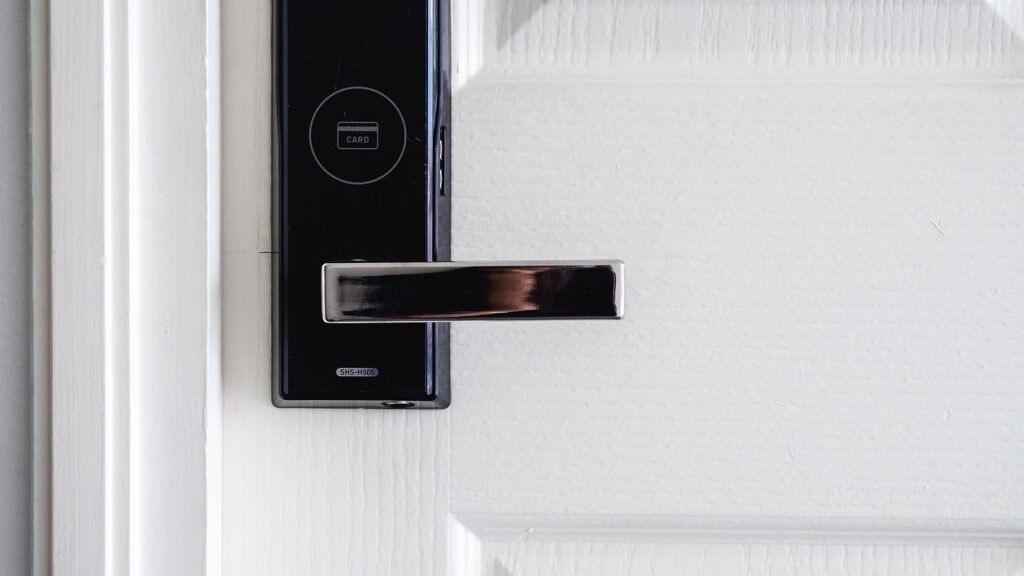
1. Wake-Up Routine with Smart Lights
Instead of a jarring alarm, imagine your bedroom lights gradually brightening over 15 minutes to simulate a sunrise. This is one of the most popular smart home automations, and for good reason. Your body responds to light cues naturally, and a gradual wake-up can help you feel more rested.
Scenario: At 6:45 AM, your bedroom smart bulbs start at 1% brightness in a warm amber tone. Over the next 15 minutes, they slowly increase to 60% brightness and shift to a cool white. By 7:00 AM, your room is fully lit, and your coffee maker (connected to a smart plug) turns on automatically.
Recommended Products: The Philips Hue White and Color Ambiance A19 bulbs are the gold standard for sunrise routines, offering smooth transitions and reliable scheduling. For a budget alternative, the Nanoleaf Essentials A19 Matter Smart Bulb supports Matter and works without a separate hub.
Setup Steps:
- Install your smart bulbs in your bedroom fixtures and connect them to your preferred app (Philips Hue, Apple Home, Google Home, or Alexa).
- Create a new automation or scene called “Sunrise Wake-Up.”
- Set the trigger time for 15 minutes before your desired wake-up time.
- Configure the brightness to ramp from 1% to 60% over 15 minutes, with a color temperature shift from warm (2700K) to cool (4000K).
- Add a second action to turn on your coffee maker via a smart plug at the end of the routine.
For more bulb options, check our guide to smart light bulbs for 2026.
2. Coffee Maker Auto-Start with a Smart Plug
If your coffee maker does not have built-in Wi-Fi, a smart plug is the simplest way to automate your morning brew. This is a classic beginner automation that pays off every single day.
Scenario: You prep your coffee maker the night before, filling the reservoir and adding grounds. At 6:50 AM, a smart plug powers on the coffee maker automatically. By the time your sunrise light routine finishes at 7:00 AM, your coffee is ready and waiting.
Recommended Products: The TP-Link Kasa KP125M Smart Plug is our top pick for reliability and includes energy monitoring. The Amazon Smart Plug is a solid alternative if you use Alexa.
Setup Steps:
- Plug your coffee maker into the smart plug and connect the plug to your Wi-Fi network.
- In the smart plug app, create a schedule that turns the plug on at your desired time.
- Make sure your coffee maker’s physical power switch is left in the “on” position so it starts brewing when power is supplied.
- Set the plug to turn off after 2 hours as a safety measure.
- Optionally, link this schedule to your sunrise light routine for a coordinated morning experience.
Our best smart plugs guide has more options for every budget.
3. Thermostat Schedule for Energy Savings
Heating and cooling account for nearly half of the average home’s energy use. A smart thermostat with automated schedules can cut your energy bills by 10 to 15% without sacrificing comfort.
Scenario: Your thermostat automatically lowers to 62 degrees Fahrenheit at 10:00 PM when you go to bed. At 6:30 AM, it warms the house to 70 degrees before you wake up. When everyone leaves for work at 8:30 AM, it drops to 65 degrees. At 5:00 PM, it starts warming back up before you arrive home.
Recommended Products: The Google Nest Learning Thermostat (4th Gen) learns your schedule automatically and adjusts itself. For a budget option, the Google Nest Thermostat (2020) offers basic scheduling at a lower price.
Setup Steps:
- Install the thermostat following the manufacturer instructions, or hire an electrician if you are not comfortable working with low-voltage wiring.
- Connect it to your Wi-Fi network and set your preferred home and away temperatures.
- Enable the learning mode (Nest) or create a custom 7-day schedule with morning, daytime, evening, and nighttime setpoints.
- Activate geofencing or use phone presence detection so the thermostat adjusts when you leave and return.
- Review your energy report monthly to fine-tune the schedule.
See our complete guide to smart thermostats for more options.
4. Door Lock Automation When Leaving
Forgetting to lock the door is a common anxiety. With a smart lock, you can automate locking based on your location, a schedule, or simply closing the door.
Scenario: When the last person leaves the house (detected via geofencing), the smart lock automatically engages the deadbolt. A confirmation notification appears on your phone. If the door is left unlocked after 11:00 PM, the lock engages automatically and sends you an alert. For more details, see our best smart locks for renters guide.
Recommended Products: The August Wi-Fi Smart Lock (4th Gen) retrofits onto your existing deadbolt and supports auto-lock features. For a full replacement, consider the Yale Assure Lock 2 with Matter for broader smart home compatibility.
Setup Steps:
- Install the smart lock on your front door, following the included instructions.
- Connect the lock to your smart home app (August, Apple Home, Google Home, or Alexa).
- Enable auto-lock and set a timer (such as 5 minutes after the door closes).
- Set up geofencing so the lock engages when you leave a defined radius around your home.
- Create a nighttime rule that locks the door at a specific hour if it is unlocked.
Explore more options in our smart locks guide.
5. Doorbell Notifications When Away
A smart video doorbell is one of the most useful security devices you can install. When you are not home, it acts as your eyes and ears at the front door.
Scenario: While you are at work, someone approaches your front door. The doorbell detects motion and sends a push notification to your phone with a live video feed. You can speak to the visitor through two-way audio, even if you are miles away. Package deliveries trigger a separate notification so you know when your order arrives.
Recommended Products: The Ring Battery Doorbell Pro (2nd Gen) offers excellent motion detection and package alerts. For a wired option with no subscription required, consider the Google Nest Doorbell (Wired, 3rd Gen).
Setup Steps:
- Mount the doorbell near your front door and connect it to Wi-Fi.
- Configure motion zones to focus on your porch and walkway, reducing false alerts from street traffic.
- Set up notification preferences for motion, doorbell presses, and package deliveries.
- Create an away mode that activates when you leave home, increasing motion sensitivity and enabling continuous recording.
- Link the doorbell to your smart lock so you can grant access to delivery drivers if needed.
Our video doorbells guide covers all the top models for 2026.
6. Security Camera Motion Alerts
Security cameras with intelligent motion detection can distinguish between a person, an animal, and a passing car. This means you only get alerts that matter.
Scenario: Your outdoor security camera detects a person walking up your driveway at 2:00 AM. It sends an immediate alert with a snapshot and starts recording. A floodlight turns on automatically to deter the intruder. During the day, the camera ignores cars and animals, only alerting you to human activity.
Recommended Products: The Reolink Argus 4 Pro is our top pick for wire-free security with no subscription. The TP-Link Tapo C120 is a budget-friendly option with solid performance.
Setup Steps:
- Mount the camera in a location with a clear view of your driveway or entry points.
- Connect it to your Wi-Fi network and complete the initial setup in the app.
- Enable person detection and disable alerts for vehicles and animals if your camera supports it.
- Set up activity zones to monitor specific areas and ignore others.
- Create an automation that turns on outdoor smart lights when the camera detects motion at night.
Find the right camera in our security cameras guide.
7. Robot Vacuum Scheduled Cleaning
A robot vacuum on a schedule means you come home to clean floors every day without lifting a finger. Modern models map your home, avoid obstacles, and even empty themselves.
Scenario: Every weekday at 10:00 AM, your robot vacuum starts cleaning the living room and hallways while you are at work. It avoids the cat’s food bowl, navigates around furniture, and returns to its dock to empty the dustbin. On weekends, it runs a deeper cleaning cycle that includes the bedrooms.
Recommended Products: The Roborock Qrevo Robot Vacuum offers excellent mapping and self-emptying capabilities. For a budget pick, consider the Roomba Combo Essential.
Setup Steps:
- Place the charging dock against a wall with clear space on both sides.
- Run an initial mapping pass so the vacuum learns your home layout.
- Edit the map to define rooms, no-go zones, and furniture locations.
- Create a cleaning schedule for each room or zone, assigning different days and times.
- Set the vacuum to avoid areas with pet bowls or loose cables.
Compare all top models in our robot vacuums guide.
8. Robot Mop Schedule
Hard floors need regular mopping to stay truly clean, and a robot mop can handle this chore on a schedule that fits your routine.
Scenario: Twice a week, your robot mop cleans the kitchen and bathroom floors after the robot vacuum has finished. It starts with the driest rooms first and ends with the kitchen, where spills are most common. The mop washes and dries its own pads, so you only need to refill the water tank every two weeks.
Recommended Products: The Roborock S8 MaxV Ultra is the best overall robot mop with self-cleaning capabilities. For better value, the eufy X10 Pro Omni offers similar features at a lower price.
Setup Steps:
- Place the mop station near a water source and power outlet.
- Run the mapping process to create a floor plan.
- Mark carpeted areas so the mop lifts its pads or avoids those rooms entirely.
- Schedule mopping sessions on specific days, choosing water flow levels for each room.
- Set the station to auto-wash and auto-dry the mop pads after each session.
See our robot mops guide for the full lineup.
9. Smart Scale Health Tracking Routine
A smart scale does more than show your weight. It tracks body composition metrics over time, and when paired with a routine, it can help you build consistent health habits.
Scenario: Every morning at 7:15 AM, after your coffee but before breakfast, you step on your smart scale. It automatically syncs your weight, body fat percentage, muscle mass, and water weight to your phone. A weekly summary shows trends and helps you adjust your nutrition and exercise plan.
Recommended Products: The Renpho Elis Chroma Aspire Smart Scale is our top pick for accuracy and app quality. For a budget option, the Renpho Bluetooth Body Fat Scale (Elis 1) covers the basics at a fraction of the cost.
Setup Steps:
- Place the scale on a hard, flat surface (not carpet) in your bathroom or bedroom.
- Download the scale’s companion app and create a user profile.
- Connect the scale to your phone via Bluetooth or Wi-Fi.
- Set a daily reminder on your phone for the same time each morning.
- Link the scale data to Apple Health, Google Fit, or your fitness app of choice.
Our smart scales guide has more details on body composition tracking.
10. Diffuser Aromatherapy Schedule
A smart diffuser can fill your home with pleasant scents on a schedule, creating a calming atmosphere without manual operation. Some models even support multiple scent cartridges for variety.
Scenario: At 8:00 PM, your smart diffuser releases lavender essential oil for 30 minutes to help you wind down. In the morning, it switches to a citrus blend that energizes the kitchen. On weekends, it runs longer sessions during your relaxation time. Check out our lease compliance smart home renters guide for more options.
Recommended Products: The Pura 4 Smart Diffuser supports dual scent cartridges and app-controlled scheduling. For a traditional approach, the ASAKUKI 500ml Essential Oil Diffuser works with smart plugs for basic automation.
Setup Steps:
- Place the diffuser in your desired room, away from direct sunlight and electronics.
- Fill the water tank and add your preferred essential oils or insert scent cartridges.
- Connect the diffuser to your Wi-Fi network via the companion app.
- Create schedules for different times of day, selecting scent intensity and duration.
- Link the diffuser to your evening wind-down or morning routine for automatic activation.
Browse our smart diffusers guide for more options.
11. Air Purifier Air Quality Automation
An air purifier that runs only when needed saves energy and extends filter life. By connecting it to an air quality sensor or using its built-in sensor, you can automate purification based on real-time conditions.
Scenario: Your air purifier runs on low speed throughout the day. When the built-in sensor detects a spike in PM2.5 (perhaps from cooking or outdoor smoke), it automatically switches to turbo mode. Once air quality returns to good levels, it drops back to low. At night, it enters sleep mode with dimmed lights and reduced fan speed.
Recommended Products: The LEVOIT Core 300 Air Purifier offers solid performance at a budget price. For larger spaces, the Blueair Blue Pure 211+ covers rooms up to 540 square feet.
Setup Steps:
- Place the purifier in the room where you spend the most time, away from walls and furniture.
- Connect it to your smart home app if it supports Wi-Fi, or plug it into a smart plug.
- Enable auto mode so the purifier adjusts fan speed based on its air quality sensor.
- Create a nighttime schedule that activates sleep mode with reduced noise and dimmed indicator lights.
- Set up a cooking automation that boosts the purifier when your kitchen smart plug (connected to the stove or oven) turns on.
Check our air purifiers guide for the full list.
12. Pet Feeder Scheduled Meals
If you have pets, an automated feeder ensures they eat on time even when your schedule changes. This is especially useful for early mornings, late meetings, or weekend trips.
Scenario: Your cat gets fed at 7:00 AM and 6:00 PM every day, with a small midday treat at noon. The feeder dispenses precise portions and sends a notification to your phone confirming each meal. When you go on a short trip, you can monitor feeding through the built-in camera and even talk to your pet through two-way audio.
Recommended Products: The PETLIBRO Granary Smart Camera Feeder includes a camera and two-way audio. For a simpler option, the PetSafe Smart Feed Automatic Pet Feeder offers reliable scheduling without the camera.
Setup Steps:
- Fill the food hopper with your pet’s dry food and place the feeder in a stable location.
- Connect the feeder to your Wi-Fi network via the companion app.
- Set up feeding schedules with precise portion sizes for each meal.
- Enable notifications so you receive a confirmation when each meal is dispensed.
- Test the manual feed button to ensure food dispenses correctly before relying on the schedule.
Read our smart pet feeders guide for reliability rankings.
13. Robot Lawn Mower Schedule
A robot lawn mower keeps your grass at a consistent height all season long. Modern models use GPS or wire boundaries to move around your yard, and you can schedule mowing sessions around your outdoor activities.
Scenario: Your robot lawn mower runs every Tuesday and Friday at 9:00 AM, avoiding times when children play in the yard. It mows in random patterns to avoid creating wheel ruts, returns to its charging station when the battery is low, and pauses when it detects rain.
Recommended Products: The Segway Navimow i110N is the best value wire-free mower with GPS navigation. For larger properties with hills, the Mammotion LUBA 3 AWD 3000 handles slopes up to 38 degrees.
Setup Steps:
- Install the charging station in a sheltered area of your yard with access to power.
- Map your lawn boundaries using the app (for GPS models) or install the perimeter wire (for wire-guided models).
- Define no-go zones like gardens, pools, and children’s play areas.
- Create a mowing schedule based on grass growth rate and your yard usage patterns.
- Enable rain detection so the mower returns to its station during wet weather.
See our robot lawn mowers guide for complete reviews.
14. Pool Cleaner Schedule
If you have a pool, a robotic cleaner can keep it sparkling with minimal effort. Scheduling regular cleaning cycles prevents algae buildup and reduces the need for chemical treatments.
Scenario: Your robotic pool cleaner runs every other day at 6:00 AM, scrubbing the floor, walls, and waterline for two hours. It climbs walls, navigates around steps, and filters debris from leaves to fine particles. When the cycle is complete, it parks itself near the edge for easy retrieval.
Recommended Products: The Dolphin Nautilus CC Plus is a reliable choice for in-ground pools. For cordless convenience, consider the Aiper Scuba S1 for above-ground pools.
Setup Steps:
- Place the cleaner in the pool and connect it to power (or ensure the battery is charged for cordless models).
- Use the app or control panel to set a cleaning schedule (every other day is typical for most pools).
- Select the cleaning mode: floor only, floor and walls, or waterline scrubbing.
- Adjust the cycle duration based on your pool size (larger pools need longer cycles).
- Clean the filter basket after every few cycles to maintain suction power.
Find the right model in our robotic pool cleaners guide.
15. Smart Blinds Sunrise and Sunset Automation
Smart blinds that open and close with the sun help regulate indoor temperature and reduce your reliance on heating and cooling. They also provide privacy automatically after dark.
Scenario: Your living room blinds open at sunrise to let in natural light and warmth. At noon, the south-facing blinds close halfway to prevent overheating. At sunset, all blinds close automatically for privacy and insulation. During summer, the blinds close during the hottest part of the day to keep the house cool.
Recommended Products: The SwitchBot Blind Tilt is a retrofit device that works with existing tilt blinds. For roller shades, the AOSKY Cordless Motorized Roller Shades offer built-in motorization.
Setup Steps:
- Install the smart blinds or retrofit motors on your existing blinds.
- Connect them to your smart home hub or app.
- Enable sunrise and sunset automation based on your geographic location.
- Create seasonal adjustments that close south-facing blinds during peak sun hours in summer.
- Link the blinds to your thermostat so they close automatically when the AC is running.
Explore options in our smart blinds guide.
16. Energy Monitor Usage Alerts
A home energy monitor tracks your electricity consumption in real time and can alert you when usage spikes. This helps you identify wasteful appliances and avoid surprises on your utility bill.
Scenario: Your energy monitor detects that your home is drawing 5,000 watts at 3:00 PM on a weekday, which is unusually high. It sends an alert to your phone. You check the app and discover that someone left the oven on. You call home to have it turned off, avoiding wasted energy and a potential safety hazard.
Recommended Products: The Sense Energy Monitor installs in your electrical panel and uses machine learning to identify individual appliances. For circuit-level monitoring, the Emporia Gen 3 Vue offers 16 sensor channels at a lower price.
Setup Steps:
- Install the energy monitor in your electrical panel (hire an electrician if you are not experienced).
- Connect the monitor to your Wi-Fi network and complete the initial setup.
- Allow the monitor to run for at least a week so it can learn your baseline usage patterns.
- Set up custom alerts for high usage thresholds (such as over 4,000 watts during off-peak hours).
- Review the daily and weekly reports to identify devices that consume the most energy.
Compare all options in our home energy monitors guide.
17. Sprinkler Controller Weather-Based Watering
A smart sprinkler controller adjusts your watering schedule based on local weather data, saving water and keeping your lawn healthy. It skips watering before rain and increases it during dry spells.
Scenario: Your sprinkler controller checks the forecast every morning. If rain is expected within 24 hours, it skips the scheduled watering cycle. During a heat wave, it extends watering duration by 20%. You receive a monthly water usage report that shows how much you saved compared to a fixed schedule.
Recommended Products: The Rachio 3 Smart Sprinkler Controller is the industry leader with excellent weather integration. For a budget alternative, the Orbit B-hyve Smart Sprinkler Timer offers similar features at a lower price.
Setup Steps:
- Replace your existing sprinkler controller with the smart controller, matching wire-for-wire.
- Connect it to your Wi-Fi network and enter your location for weather data.
- Configure each zone with plant type, soil type, sun exposure, and sprinkler head type.
- Enable weather intelligence so the controller adjusts or skips cycles based on forecasts.
- Set up notifications for skipped cycles and monthly water usage summaries.
Read our smart sprinkler controllers guide for the complete comparison.
18. Dishwasher Off-Peak Scheduling
Many utility companies charge less for electricity during off-peak hours, typically late at night. If your dishwasher supports delayed start or is connected to a smart plug, you can run it when electricity is cheapest.
Scenario: You load the dishwasher after dinner and select the delay start for 11:00 PM, when your utility’s off-peak rates begin. The dishwasher runs its full cycle overnight and finishes before you wake up. Your energy monitor confirms the savings on your daily report.
Recommended Products: The Bosch 300 Series Dishwasher features a delay start function and runs quietly enough for nighttime operation. For a budget option, the Midea 18-Inch Dishwasher also supports delayed start.
Setup Steps:
- Check your utility company’s time-of-use rate schedule to identify off-peak hours.
- Load the dishwasher after your evening meal.
- Use the delay start feature on the dishwasher or connect it to a smart plug for scheduling.
- Set the cycle to begin at the start of your off-peak window.
- Enable rinse aid and use the air-dry option to further reduce energy consumption.
Our dishwashers guide covers more models with smart features.
19. Power Station Backup Automation
A portable power station can automatically provide backup power during outages, keeping critical devices running. Some models support pass-through charging and automatic switchover.
Scenario: During a power outage, your portable power station automatically switches on within milliseconds, keeping your router, modem, and a few lights running. When grid power returns, the station switches back to charging mode. You receive a notification on your phone about the outage and how long the battery lasted.
Recommended Products: The Bluetti Elite 200 V2 offers a UPS function with automatic switchover. For whole-home backup, the EcoFlow Delta Pro 3 supports integration with home electrical panels.
Setup Steps:
- Place the power station near your critical devices (router, modem, lights).
- Connect the devices to the power station’s AC outlets.
- Plug the power station into a wall outlet for continuous charging.
- Enable UPS mode so the station automatically switches to battery power when grid power fails.
- Connect the station to its app for remote monitoring and outage notifications.
Compare models in our portable power stations guide.
20. Matter Hub Multi-Device Routines
Matter is the universal smart home standard that lets devices from different brands work together. A Matter hub acts as the central brain, coordinating routines across multiple device types and ecosystems. You can also explore our SwitchBot vs August vs Wyze comparison resource.
Scenario: You say “Good morning” to your voice assistant. The Matter hub triggers a routine that turns on the bedroom lights, starts the coffee maker via a smart plug, adjusts the thermostat to 70 degrees, opens the blinds, and starts playing your favorite news podcast. All of this happens through a single Matter controller, regardless of which brand made each device.
Recommended Products: The Aqara Hub M3 is a powerful Matter controller that supports Thread, Zigbee, and Wi-Fi devices. For Apple Home users, the Eve Energy (Matter/Thread) works as both a smart plug and a Thread router.
Setup Steps:
- Connect the Matter hub to your network and add it to your preferred smart home platform.
- Pair each Matter-compatible device with the hub, following the QR code scanning process.
- Group devices into rooms or zones within your smart home app.
- Create multi-device routines that trigger from a single command, schedule, or sensor.
- Test each routine to confirm all devices respond correctly and adjust timing as needed.
Learn more in our Matter compatible devices guide.
21. Renter-Friendly No-Wiring Automations
If you rent your home, you can still build powerful automations without drilling holes or running new wiring. Many smart home devices are designed specifically for renters, using adhesive mounts and battery power.
Scenario: In your apartment, you use battery-powered smart bulbs, a smart plug for the living room lamp, a wireless door sensor on the front door, and a battery-powered security camera. When you open the door, the lights turn on automatically. When you leave, the camera arms, the lights turn off, and the thermostat adjusts to away mode.
Recommended Products: Start with the TP-Link Kasa KP125M Smart Plug for automating lamps and small appliances. Add Nanoleaf Essentials A19 Bulbs for smart lighting without replacing fixtures.
Setup Steps:
- Replace existing bulbs with smart bulbs (no wiring changes needed).
- Plug lamps and small appliances into smart plugs.
- Install a wireless door sensor using adhesive backing on your front door frame.
- Create a routine that turns on lights when the door opens after sunset.
- Create a leaving-home routine that turns off all devices and arms the camera.
Our renter-friendly smart home guide covers everything you need for a no-drill setup.
22. Movie Night Scene with Smart Lights and Plugs
A movie night scene transforms your living room into a home theater with a single command. Dim the lights, turn on the TV, and close the blinds automatically.
Scenario: You press a “Movie Night” button on your phone or say “Movie time” to your voice assistant. The living room lights dim to 10% in a warm amber tone. The TV and soundbar power on via smart plugs. The blinds close to block outside light. The thermostat drops 2 degrees because the room will warm up with people and electronics.
Recommended Products: Use Philips Hue White and Color Ambiance Bulbs for precise dimming and color control. Pair them with Amazon Smart Plugs to control your TV and soundbar power.
Setup Steps:
- Install smart bulbs in your living room fixtures and connect smart plugs to your TV and soundbar.
- Create a scene called “Movie Night” in your smart home app.
- Set the lights to dim to 10% with a warm color temperature (2700K).
- Add actions to power on the TV and soundbar via smart plugs.
- Include a thermostat adjustment to lower the temperature by 2 degrees.
- Trigger the scene with a voice command, phone widget, or schedule.
Check our smart lighting guide for more scene ideas.
23. Vacation Mode Automation
When you travel, a vacation mode routine makes your home look occupied, keeps security devices active, and adjusts the thermostat to save energy while protecting pipes.
Scenario: You activate vacation mode before leaving for a week-long trip. The lights turn on and off at randomized times to simulate someone being home. Security cameras switch to high-sensitivity mode with cloud recording. The thermostat maintains a minimum temperature of 55 degrees to prevent pipe freezing. Smart locks confirm they are engaged. You receive a daily summary of any detected activity.
Recommended Products: Use Philips Hue Bulbs for randomized lighting schedules. Add the Reolink Argus 4 Pro for continuous security monitoring.
Setup Steps:
- Create a “Vacation Mode” routine in your smart home app.
- Set lights to turn on and off at randomized times between 6:00 PM and 10:00 PM.
- Switch security cameras to high-sensitivity recording mode.
- Set the thermostat to maintain a minimum temperature of 55 degrees Fahrenheit.
- Confirm all smart locks are engaged and enable lock status notifications.
- Set up a daily activity summary email or push notification.
Our security cameras guide covers models with no subscription required.
24. Guest Mode with Temporary Access
When guests stay at your home, a guest mode routine gives them temporary access to key devices without sharing your permanent codes or passwords.
Scenario: Your parents visit for the weekend. You create a temporary guest profile that includes a unique door lock code valid from Friday 6:00 PM to Sunday 11:00 AM. The guest Wi-Fi network activates automatically. The thermostat adjusts to their preferred temperature. The bedroom lights and smart plug are linked to their control. All temporary access expires automatically on Sunday.
Recommended Products: The August Wi-Fi Smart Lock (4th Gen) supports temporary guest codes with expiration dates. Pair it with the Google Nest Learning Thermostat (4th Gen) for temperature adjustments.
Setup Steps:
- Create a guest access code on your smart lock with a specific start and end date.
- Enable the guest Wi-Fi network on your router with a separate password.
- Create a “Guest Mode” routine that adjusts the thermostat to a comfortable temperature.
- Assign the guest bedroom lights and smart plug to a temporary profile.
- Set the routine to automatically disable guest access at the specified departure time.
For more security tips, see our smart locks guide.
25. Goodnight Routine
A goodnight routine is the perfect way to end the day. With one command, you can lock the doors, dim the lights, adjust the thermostat, and turn off all non-essential appliances.
Scenario: At 10:30 PM, you say “Goodnight” to your voice assistant. The front door locks automatically. All lights except the hallway nightlight turn off. The thermostat drops to 65 degrees. The TV and soundbar power off via smart plugs. The robot vacuum charges for its morning run. The security cameras switch to night mode with infrared recording.
Recommended Products: Combine the August Wi-Fi Smart Lock, Philips Hue Bulbs, and TP-Link Kasa Smart Plugs for a complete goodnight routine.
Setup Steps:
- Create a “Goodnight” routine in your smart home app.
- Add an action to lock all smart doors.
- Set all lights to turn off, leaving one hallway light at 5% brightness as a nightlight.
- Set the thermostat to your preferred sleeping temperature.
- Add actions to turn off all smart plugs connected to the TV, soundbar, and other electronics.
- Trigger the routine with a voice command, a scheduled time, or a bedside button.
Need more smart plug options? See our best smart plugs guide.
Frequently Asked Questions
1. What is the easiest smart home automation to set up first?
The easiest automation is a smart plug controlling a lamp or coffee maker on a schedule. It requires no wiring, works with any home, and can be set up in under 10 minutes. Smart plugs are also the most affordable entry point, with reliable options starting around $15.
2. Do I need a hub for smart home automation?
It depends on your devices. Some smart home devices work directly with Wi-Fi and do not require a hub. Others use Zigbee, Thread, or Z-Wave protocols that need a hub. If you use Matter-compatible devices, a hub like the Aqara Hub M3 can coordinate everything. Many users start without a hub and add one as their setup grows.
3. Can I set up smart home automation as a renter?
Absolutely. Many smart home devices are designed for renters and require no permanent installation. Smart bulbs, smart plugs, battery-powered cameras, and wireless door sensors all work without drilling or wiring. Our renter-friendly smart home guide covers everything you need.
4. How much can I save on energy bills with smart home automation?
Smart thermostats alone can save 10 to 15% on heating and cooling costs. Adding smart plugs to cut phantom power, scheduling your dishwasher for off-peak hours, and using smart blinds for passive temperature control can add up to additional savings. A home energy monitor helps you track exactly where your savings come from.
5. Which voice assistant is best for smart home automation?
All three major assistants (Amazon Alexa, Google Assistant, and Apple Siri) support smart home automation. Alexa has the broadest device compatibility, Google Assistant excels at contextual commands, and Apple HomeKit offers strong privacy controls. Choose based on the devices you already own and your preferred ecosystem.
6. What is Matter and do I need it?
Matter is a universal smart home standard that allows devices from different brands to work together. If you are starting fresh in 2026, choosing Matter-compatible devices gives you flexibility to switch platforms later. You do not need Matter if all your devices already work within a single ecosystem, but it is worth considering for future-proofing.
7. Can smart home automation improve home security?
Yes. Automated door locks, motion-activated cameras, smart doorbells, and scheduled lighting all contribute to home security. You can create routines that make your home look occupied while you are away, receive instant alerts about unusual activity, and grant temporary access to trusted visitors.
8. How do I prevent smart home devices from slowing down my Wi-Fi?
If you have many smart devices, consider setting up a dedicated Wi-Fi network or VLAN for them. A mesh Wi-Fi system can also help distribute the load. Most smart home devices use very little bandwidth, but having 30 or more devices on a single router can cause connectivity issues.
9. Are smart home automation routines safe from hacking?
While no connected device is 100% secure, you can minimize risks by using strong, unique passwords, enabling two-factor authentication, keeping firmware updated, and using devices from reputable brands. Matter devices include enhanced security features like secure pairing and encrypted communication.
10. What is the best smart home automation for pet owners?
Pet owners benefit most from automated feeders, robot vacuums for pet hair, and smart cameras for monitoring. A routine that feeds your pet on schedule, cleans the floors while you are at work, and lets you check in via camera provides peace of mind and keeps your home clean.
Conclusion
Smart home automation in 2026 is about practical routines that save time, reduce energy costs, and add convenience to your daily life. You do not need to automate everything at once. Start with one or two ideas from this list, such as a smart plug for your coffee maker and a scheduled robot vacuum, and expand from there.
The key is choosing devices that work within your preferred ecosystem and building routines that match your actual daily patterns. Whether you own a home or rent an apartment, there is an automation setup that fits your space and budget. For affordable options, check our guide to best smart home devices under $100.
As you add more devices, consider a Matter hub to coordinate everything and create multi-device routines that work across brands. The future of smart home automation is about simplicity and interoperability, and the tools to build it are more accessible than ever.